Boosted CRM - Copyright © 2013 - 2024. All Rights Reserved.



There are tremendous benefits to operating a business in a digital-forward time – we’re able to achieve so much more in a faster amount of time, and with digital functionality, we can also analyze and understand consumer behavior more than ever before. This tracking and ability to “listen” to our target audience allows us to refine our messaging, learn what’s working, and get a sense of how we’re competing with the rest of the marketplace. With all of this digital functionality, we’re also able to operate physically practically anywhere we are, which gives us a greater opportunity to devote more time to our personal lives and connect with our loved ones.
That connectivity can work both ways. Because so much of what we’ve achieved digitally means that we can do so much behind the screen, we’re often missing that person-to-person interaction. Often it was during these moments when we’d learn about our core audiences – whether these happened in brick and mortar locations or whether it happened over the phone, which kind of feels like a lost and abandoned practice in today’s time, that real human value can often feel overlooked or misplaced.
We’ve continued to excel to replace those interactions with other kinds of interactions, like through email marketing, social media engagement, and even onsite interactions through chats or message boards. Obtaining feedback can also be difficult in this new time, but that doesn’t mean it can’t be done – this is where Zoho Survey comes into play. With the ability to launch customized surveys to fit your needs or to help you arrive at conclusions, you’ll be able to grasp a better picture of your target audience, their needs, and the effectiveness of your current strategies. Here are just a few ways Zoho Survey can help your business in the long-term.
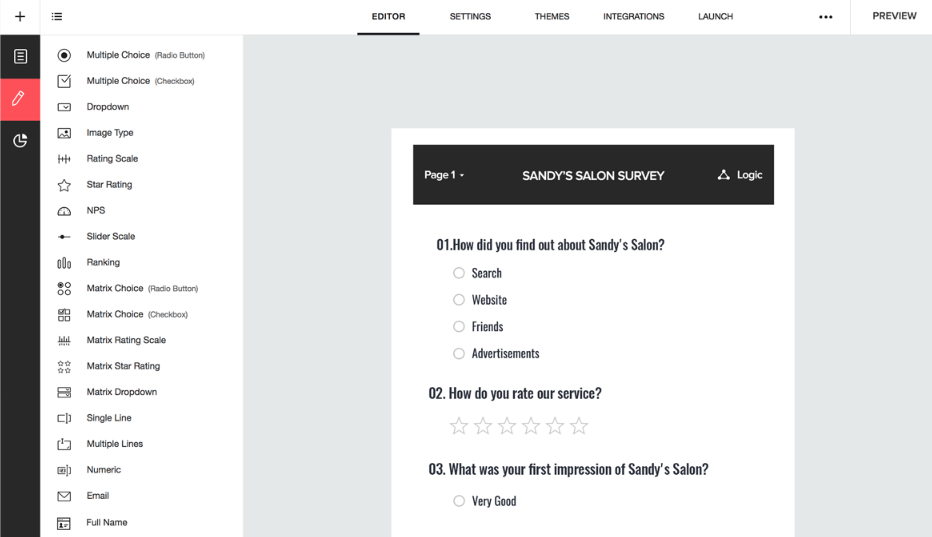
Depending on the goal of your survey and what you hope to obtain from launching your survey, Zoho Survey allows your team complete control over how you choose to launch this operation. From choosing the question type, to how long you want the survey to be, to figuring out how you want to thank your survey taker, you will have complete control over how the survey is designed. And when it comes to visual design, you’ll also be able to choose from multiple template themes so that it still fits your style and your brand’s onsite aesthetic.
You know your audience better than anyone, so Zoho Survey allows you to choose how you launch the survey and through what platform. If you have an active and robust social media following, it might be worth it to launch the survey there where they’re already engaged and active. If your email marketing strategy is strong, your survey might have the best completion metrics there. The Zoho Survey platform ensures that all data that is received from the surveys remains safe and secure, so you won’t have to worry about any sensitive information being released in places it shouldn’t.
Once your survey parameters have been fulfilled and completed, Zoho Survey will aggregate all of the data and deliver analytical reports so that you can see the results and identify any issues that you were hoping to solve for by launching the survey. From there, you’ll also be able to make strategic decisions on how to tweak efforts, shift messaging, or improve any white space that has been identified as a result of the survey. You’ll be able to choose how to manipulate the data and use it to inform all of your teams involved.
As consumers ourselves, so much of what we do is on our mobile devices now. We’re on the go at all times, so it makes sense that Zoho Survey is capable of serving these temperature checks on all devices. Not only will you be able to reach the most users possible, but by being mobile-friendly, you’ll also be communicating that your company is staying innovative and matching market standards.
Asking for voluntary participation sometimes means that you don’t always get the high completion rates that you desire. As consumers ourselves, it’s likely that we’ve all chosen to forgo survey participation, even if the experience itself isn’t that extensive or tedious or time-consuming. One of the ways in which Zoho Survey can help is to broaden your reach by putting forth additional dollars – from there, the team can help find more respondents for your survey so you’ll have more data to analyze. With established survey panels, you’ll be able to tap into a variety of demographics and mindsets to help you arrive at more conclusions and educated next steps. You can also collaborate and bounce ideas off of other teams to get you to think about areas or topics that you may not have previously considered.
Our digital world has connected us in ways that many of us have probably never thought possible. The irony in that advanced technology is that we’ve oddly enough somehow become more separated and disconnected from one another. As a business, it’s important to pay attention to this, as there are so many valuable and rich ways to connect with your target audience organically and authentically, even though we’re so digitally driven. Zoho Surveys is a way that you can communicate with your audience that you care about what they think of your company and the business that you’re conducting. They’ll appreciate that they’re being heard and that their opinions and experiences matter. Keeping an ear to the consumer experience will also help you grow your business from the standpoint of taking the consumer expectation into every consideration for your company’s future so you can continue to make an impact with your audience.